Help
GetMapGo Plan and Print
Plan is a free trip planner that runs in your web browser. You build an Atlas for a trip here, then take it offline in the GetMapGo app on your phone, or print it as a PDF map set.
Getting started
What Plan is
Plan is the big-screen half of GetMapGo. On a computer you can search for trails, draw routes that follow them, add waypoints, check distance and elevation, and choose which maps to take offline. When the trip looks right, you save it as an Atlas and open it in the app. Print, on the same page, turns that Atlas into a PDF map set.
Plan is free and needs no account. It works best on a computer with a mouse. It's in beta, so things may change; tell us when something doesn't work.
What an Atlas is
An Atlas is one small file, ending in .mapgo, that holds
everything for one trip:
- the areas whose maps you want offline
- your routes, including side trips
- waypoints, with types and notes
- a description, field notes and a cover photo
- which map layers to download, and how detailed
- your print layout, and a history of who changed what
The file doesn't contain the maps themselves, which keeps it small enough to email. When you open it in the app, the app downloads the maps for the Atlas's areas. From then on they work with no signal.
An Atlas needs at least one area. Areas are what the app downloads; without one it has no maps to fetch. A route counts: each route you draw adds its own area. Waypoints alone don't.
The same file opens in the app, in Plan and in Print. You can plan on a computer, adjust on your phone, and share it with your group.
Plan your first Atlas
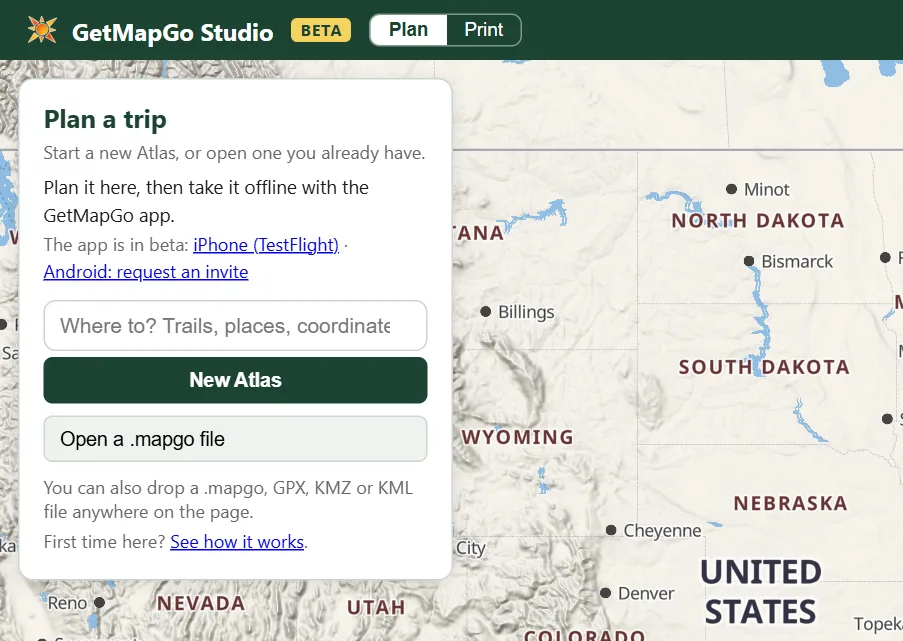
- Start an Atlas. Open Plan and click New Atlas. Or type where you're going into Where to? (a trail, a place or coordinates) and pick a result. Plan starts a new Atlas named after it.
- Name it. Type a name in Atlas name, at the top of the panel on the left.
- Draw your route. Click Route, keep Follow trails selected, and click along the trail. Each leg snaps to the mapped trails and roads. Click Done at the end. To take a whole trail at once, click Find trail, click the pink trail, and choose Whole trail as a new route.
- Add waypoints. Click Waypoint, then click the map for camps, water, junctions and anything else you want to find again.
- Check what downloads. Look at Areas in the panel on the left: your route is already there, bringing along the maps 1 mile on each side unless you change it. If Areas is empty, the app has nothing to download. For ground off the route, add an area with Squares, Box or Point (or + Add area). Click Atlas only to see exactly what's covered.
- Save it. Click Save to computer. You get a file named
after the Atlas, such as
Rae Lakes.mapgo.
Get it on your phone
- Get the app. GetMapGo is in free beta. On iPhone, join the TestFlight beta. On Android, request an invite; it comes by email through Google Play.
- Move the file to your phone. Email it to yourself, AirDrop it, or save it to a cloud drive. In Plan, Email or share opens your computer's share options. Where your browser can't share files, it downloads the file and opens an email draft; attach the file to it.
- Open it in GetMapGo. Tap the file and open it with GetMapGo. Or, in the app, use Open a shared Atlas (when your library is empty) or Import atlas or journey (.mapgo) in the ⋮ menu. Then tap Add atlas.
- Download the maps. While you have Wi-Fi or signal, tap the new Atlas's Not downloaded chip. A large Atlas can be a big download, so Wi-Fi is best.
- Check before you go. Choose Run Field Ready check from the Atlas's menu. It tells you whether everything the trip needs is on the phone. After that, the Atlas works in airplane mode.
If the app can't open a file from an email or a cloud drive, save the file to the phone first, then open it again.
Changed the Atlas in the app? Use Export / share... on its card and open the file in Plan again. Its history, print layout and editable routes come along.
Planning a trip
The map fills the page, with the controls around it:
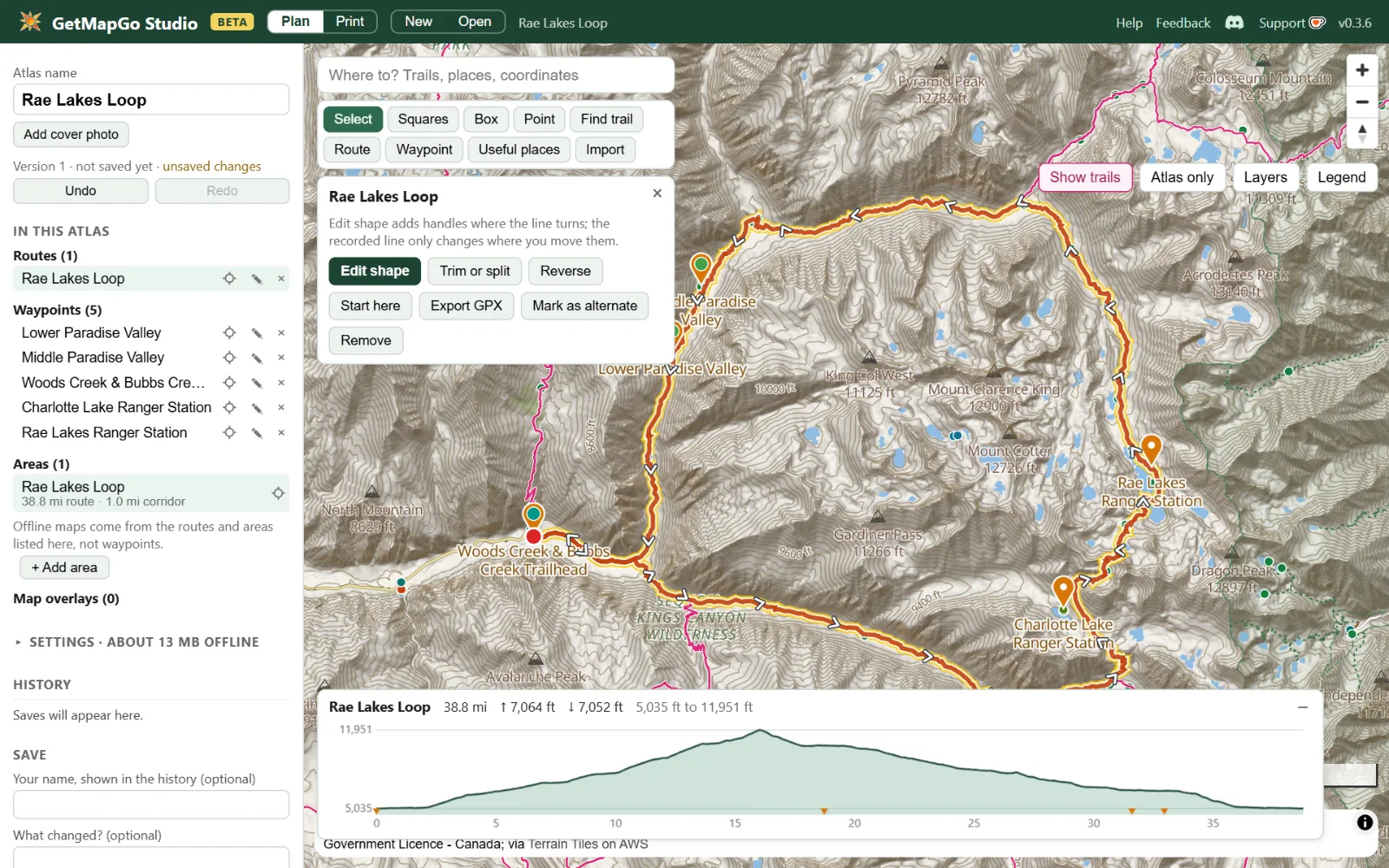
- Where to? Search for trails, places and coordinates.
- The tool bar. Draw routes, add waypoints and areas, and import files.
- The selected item's card. Here, the route's: edit, trim, reverse, export or remove it.
- The Atlas panel. Name, undo, everything in the Atlas, Settings, History and Save.
- Areas. What the app downloads. An Atlas needs at least one; each route adds its own.
- Map buttons. Show trails, Atlas only, Layers and Legend.
- Distance and elevation for the selected route.
Find a place
Type at least two letters into Where to?. Results come in groups:
- Coordinates
- Decimal degrees (
36.7512, -118.4021), degrees and minutes, or degrees, minutes and seconds, with or without N, S, E and W. UTM works too (13S 391234 4331234), and so do both lines a geocaching.com listing shows (N 39° 20.460 W 087° 21.364,UTM: 16S E 469316 N 4354679). - On this map
- Peaks, lakes, towns and other names on the map in view.
- Trails
- Named trails across the US, with their length and type.
- Places
- Named outdoor places.
- Trails near the map center
- Shown once you're zoomed in.
Click a result, or use ↑ ↓ and Enter.
Esc closes the list. Common trail name? Add the town, as in
indian creek trail olathe ks.
Picking a trail shows it in blue with Add to Atlas. Picking a place or coordinates offers Add as waypoint or Add as a point area.
The tools
The tool bar appears once an Atlas is open. Each tool's panel has an × that takes you back to Select and keeps your work.
- Select
- Move the map and click things to select them. Click a waypoint to edit it, a route to see its card, or a pink trail to see its trail card. Drag a selected waypoint to move it. Esc always brings you back here.
- Squares
- Paint map squares to download. Click or drag to paint, click a painted square to remove it, or hold Alt and drag to erase. Zoom in first for smaller squares. Done saves the painting as one area.
- Box
- Drag a rectangle to download.
- Point
- Click to download the maps around a spot. Its radius is the buffer in Settings.
- Find trail
- Click a pink trail to add it: to the route you're drawing, as a side trip, as a new route, or the whole trail end to end. Click near trails instead to list the named trails there.
- Route
- Draw and edit routes. See Drawing routes.
- Waypoint
- Click the map to drop a waypoint. Its elevation fills in from the map, and anything known about the spot, such as a peak, a trail or a park, is offered as a suggestion.
- Useful places
- Review springs, campsites, trailheads and more in view, and add the ones you want as waypoints. See Waypoints and useful places.
- Import
- Add a GPX, KMZ or KML file. See Importing files.
In Squares, Box and the route tool's Paint mode, hold Space to move the map.
Drawing routes
Click Route to start a new route, or select a route and click Edit route. The panel has a name field and five ways to draw:
- Follow trails
Click points; each leg follows mapped trails and roads.
If a click can't be connected (it's more than about 1,000 ft from a mapped trail, or the leg is over 30 miles), Plan draws a straight line and says the connection is unverified. Sometimes it also shows a dashed route that does connect; take it with Use connected route instead.
- Straight line
- Legs go point to point, for cross-country travel.
- Paint
- Drag along a trail. Strokes snap to mapped trails under the brush and keep your line where none is mapped. Hold Shift to draw freehand.
- Pick trails
- Click trail pieces to add them, junction to junction.
- Trim
- Click the route to cut it. With one cut you can remove the start or the end, or split the route in two. With two cuts you can keep only the part between them, or remove it. Hover a button to see in red what goes.
While editing, drag a point to move it, drag the line to add a point, and right-click a point to delete it. Click back on the route to return the way you came. Undo point (or Backspace) removes the last point. Out & back doubles the route back to its start, Close loop joins its end to its start, and Reverse flips its direction. Done or Enter finishes.
Select a finished route to see its card:
- Edit route, Trim or split, Reverse
- Change the route as above.
- Out and back, Hike from trailhead, Start here
- Shown when they fit the route's shape. Out and back walks an open route back to its start. Hike from trailhead walks the approach trail of a loop out and back. Start here lets you click where a loop should start and end.
- Mark as alternate
- Makes it a side trip or alternate route. The app shows it but leaves it out of the trip totals. Trail cards also offer Add as a side trip.
- Export GPX, Remove
- Save just this route as GPX, or delete it.
Distance and elevation. The selected route's distance, climb, descent and elevation range show along the bottom of the map with an elevation chart. Orange ticks are waypoints near the route. Hover the chart to see that spot on the map. The – button shrinks the chart to a small pill. Elevation is available in the US only.
What the Atlas downloads
The app downloads maps only for the Atlas's areas:
- every route, plus a corridor on each side (the buffer, 1 mile by default)
- every point, with the buffer as its radius
- every box, plus the buffer around its edges
- painted squares, as painted
Each one is listed under Areas in the Atlas panel. An Atlas needs at least one before the app can download its maps.
Waypoints don't download anything by themselves. If a waypoint sits outside every area, Settings says so; add an area around it. Click Atlas only on the map to fog everything outside the download, so gaps are easy to spot.
Open Settings in the Atlas panel to choose what downloads. Its heading shows the estimated download size.
- Description and Field notes
- Shown in the app, and Print can put them on pages. Field notes are the place for permits, water caches, bail-out points and gate codes.
- Offline content included in this Atlas
- The USGS maps the phone downloads: USGS Topo (on for a new Atlas), USGS Imagery, USGS Imagery + Topo, USGS Shaded Relief and USGS Hydrography. Each one adds to the download, and Plan shows by how much.
- GetMapGo offline layers
- GetMapGo Topo, our own map, with Terrain elevation and hillshade,
Contour lines, Forest Service information and Slope-angle shading.
Where there's no Forest Service land in or near your Atlas (most of Kansas, say), Plan turns Forest Service information off and says why. It turns it back on if the Atlas grows to reach some. Once you change that switch yourself, Plan leaves it to you.
When slope shading has nothing steep enough to show, Plan tells you and offers Turn it off.
- Offline detail
- Overview, Standard (the default), High or Maximum. Each step up is roughly 4 times the download.
- Buffer around routes and points
- From none to 10 miles.
- Weather location
- Where the app's forecast is for: the Atlas center, unless you choose Set on the map.
- Download size
- The estimate, with a warning when the Atlas gets large. See Big trips and Journeys.
Waypoints and useful places
Click a waypoint to edit it:
- Name and Type
- Types are Campsite, Water source, Shelter, Toilet, Parking, Sign, Hazard, Trailhead, Summit, Junction, Viewpoint, Geocache and Other. Add more under Also.
- Elevation
- Filled in from the map. The ft / m button switches units.
- Position
- Type coordinates in any format search accepts, or drag the pin on the map.
- Notes
- Anything you want to read in the field.
- Known here
- Suggestions from what's nearby, such as a peak, the trail it's on or the park it's in. If the waypoint is near a route, the editor also shows which mile of the route it's at.
Useful places. Click Useful places. Plan lists them by category: campsites, drinking water, springs, shelters, huts, trailheads, trailhead parking and ranger stations. Viewpoints, waterfalls, lookout towers, hot springs, caves, bike repair and RV dump stations are there too, hidden at first in the list of what's in view. Click a category to show or hide it. Tick the ones you want (they light up on the map) and click Add as waypoints, up to 50 at a time. Select all ticks every place in the categories showing, up to 50; Clear all unticks them.
When your Atlas has a route, the list starts with Only near my routes ticked: the places within your buffer (Settings) of your routes, in the order you reach them, each with its mile ("Mile 12.3 on Rae Lakes Loop"), with every category showing. Untick it to list what's in view instead: zoom in to about county size first. The list then follows the map as you pan and zoom; places you've ticked stay on it even when they're out of view.
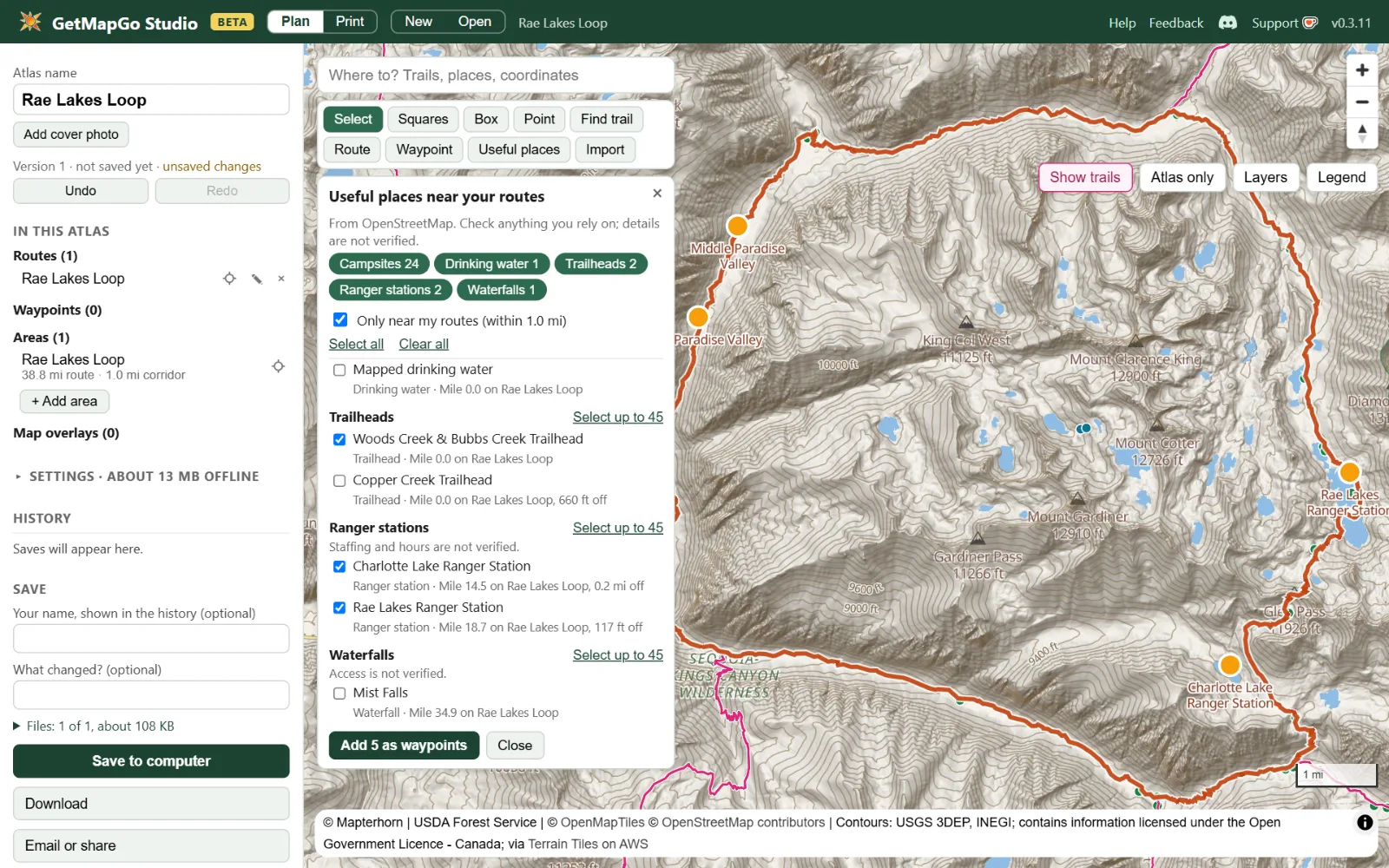
Useful places come from OpenStreetMap and aren't verified. Check anything you rely on, especially water.
Importing files
Click Import, or drop a file anywhere on the page.
- GPX: tracks become routes and waypoints become waypoints. Anything already in the Atlas is skipped.
- KML and KMZ: lines, points and map images. A map image shows on the map where the file places it, and Plan adds a download area under it.
- The Atlas keeps a copy of the file you imported.
- If the file is 50 miles or more from your Atlas, Plan asks whether to add it here or start a new Atlas.
Size limits: GPX 64 MB, KML 32 MB, KMZ 256 MB.
Map buttons and the right-click menu
- Show trails
- Draws trails in pink: named trails from zoom 11, every trail from zoom 13. Click one for its trail card.
- Atlas only
- Fogs everything the Atlas doesn't download.
- Layers
- What the map shows while you plan: the base map (GetMapGo Wander, USGS Topo or USGS Imagery), terrain shading, slope angle shading, contour lines, Forest Service trails and land, map images from KMZ files, useful places, and trails in view. This changes only your view, not what the Atlas downloads.
- Legend
- What the colors and symbols mean.
- Right-click the map
- Shows the coordinates and elevation there, with Add waypoint here, Add a point area here, Set weather location here and Copy coordinates.
The Atlas panel
- Atlas name and cover photo
- The photo shows on the Atlas in the app and on the printed cover page. Click the part that matters most, and every place that shows the photo keeps that part in view. Plan removes the photo's location data when it saves.
- Version
- Saving changes makes a new version; saving with no changes keeps the version you have. The line says when you have unsaved changes.
- Undo and Redo
- Up to 100 steps.
- In this Atlas
- Your routes, waypoints, areas and map overlays. Click a name to find it on the map, ✎ to rename it, or × to remove it (Undo brings it back). + Add area starts Squares, Box or Point. Near the coast you'll also see Tides, with the nearest NOAA station and View tide table.
- Settings
- See What the Atlas downloads.
- History
- Each saved version: when, by whom, and what changed.
Saving and sharing
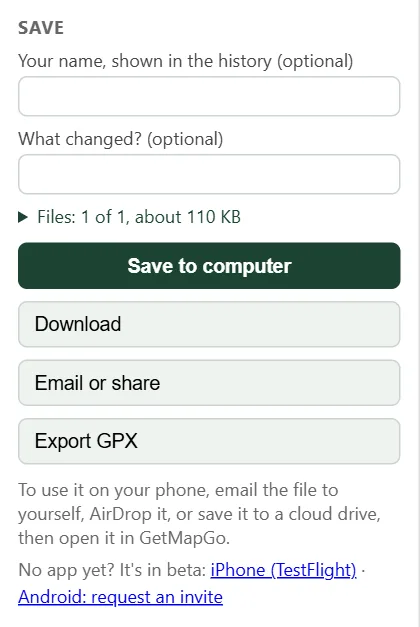
- Your name, What changed?
- Both optional. They go into the Atlas's history, so your group can see who changed what.
- Save to computer
- Saves the
.mapgofile. In Chrome and Edge it asks where to save every time, starting in the folder you used last, so you can save over the same file or keep a copy under a new name. The Download button skips the question and puts a copy in your Downloads folder. In other browsers, each save is a download. - Email or share
- Opens your system's share options. Where the browser can't share files, it downloads the file and opens an email draft for you to attach it to.
- Export GPX
- Routes and waypoints as a GPX file, for Gaia GPS, CalTopo, Garmin
and other apps. Areas and settings stay in the
.mapgoonly. - Files
- Leave out optional files, such as the cover photo or the copy of an imported file, to keep the Atlas small. Over about 20 MB, many email services won't take it.
- No areas yet
- If the Atlas has no areas, the Save section says so, with buttons to add one. You can still save it, export GPX or print it, but the app has no maps to download for it.
Plan keeps a draft of your latest edits in this browser. If you close the tab before saving, open Plan again and click Resume. The draft is a safety net, not a backup: save to your computer.
Keyboard shortcuts
On a Mac, use ⌘ for Ctrl.
| Ctrl S | Save |
|---|---|
| Ctrl Z | Undo |
| Ctrl Shift Z or Ctrl Y | Redo |
| Delete or Backspace | Remove the selected item. In the Route tool, remove the last point. |
| Enter | Finish the route you're drawing |
| Esc | Back to Select; finishes a route |
| Hold Space | Move the map while painting or drawing a box |
| Hold Shift | Draw freehand in Paint |
| Hold Alt | Erase squares |
Printing a map set
Print turns an Atlas into a PDF of map pages at the scale you choose, ready for a home printer. It's part of Plan.
Open an Atlas in Print
Click Print at the top of the page. An Atlas has to be open:
plan one, or open a .mapgo file someone sent you. Plan and
Print share the open Atlas, so you can switch back and forth.
The map shows each printed page as a dashed outline with its page number.
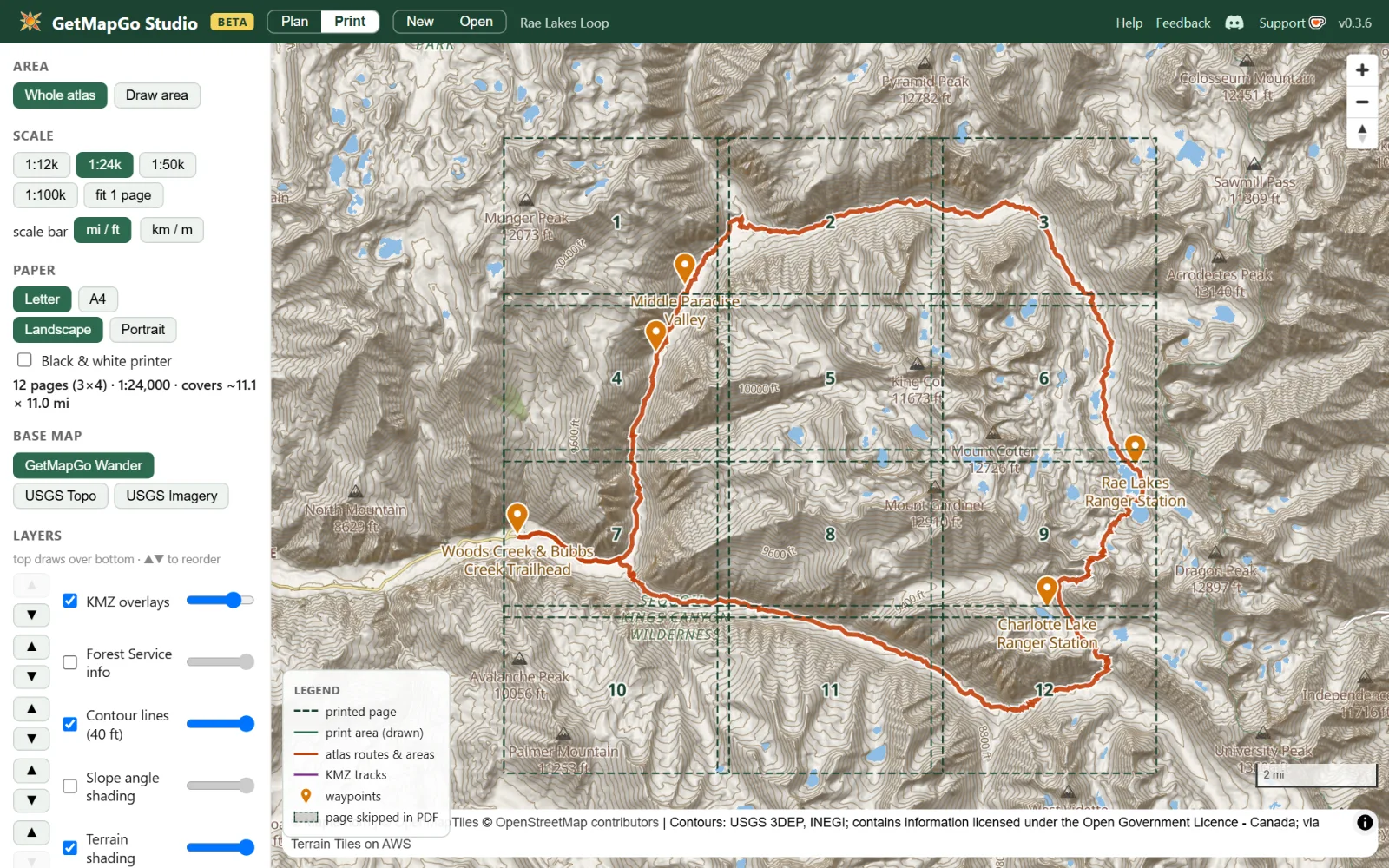
The print settings
- Area
- Whole atlas covers every route, area and waypoint. Draw area lets you drag a rectangle to print just part of it.
- Scale
- 1:12k, 1:24k (the default, the scale of USGS 7.5′ quads), 1:50k or 1:100k. fit 1 page picks the most detailed scale that fits the area on one page. The line under Paper shows how many pages that makes and how much ground they cover.
- scale bar
- mi / ft or km / m. This also sets distances in Plan, and this browser remembers it.
- Paper
- Letter or A4, Landscape or Portrait. Black & white printer prints the maps in gray.
- Base map
- GetMapGo Wander, USGS Topo or USGS Imagery.
- Layers
- KMZ overlays, Forest Service info, contour lines, slope angle shading and terrain shading. Tick a layer to show it, use the slider to set its strength, and use ▲▼ to choose which draws on top. Routes & areas and Waypoints show or hide your own items.
- Coordinates
- How the grid and the waypoint index write positions: Deg + min (N 39° 7.500, the app's default), Decimal or UTM. Grid on the map pages adds labeled grid lines.
- Pages
Click a page on the map to skip it; skipped pages are shaded. Include all and Exclude all do every page at once.
Set page order makes your route flow 1, 2, 3: click pages in the order they should print, then click the button again. Pages you don't click print after the ones you do. Clear order goes back to rows, north to south.
- Extra pages
Cover page: the photo, name and description. Add a cover photo in Plan first.
Trip notes: the description and field notes.
Waypoint index: numbers the pins on the map and lists each waypoint with its type, elevation, coordinates, notes and page.
Tide table: for an Atlas near a US coast. Choose the first day and 3 to 30 days of NOAA predictions.
text size S, M or L sets the size of these pages, and Preview extra pages opens them in a new tab.
Changing the scale, paper, orientation or area lays out new pages, which clears skipped pages and page order. Choose the scale, paper, orientation and area first; then skip pages and set the page order.
Making the PDF
- Generate PDF
- Renders every page and downloads the PDF: the cover, the map pages, then trip notes, the waypoint index and the tide table. Each map page has the Atlas name and page number, the scale and a scale bar, and a note on each edge naming the page that continues there.
- Download atlas with these settings
- Saves your print layout into the Atlas as a new version. It opens the same way next time, for you or anyone you send it to.
- Reset to defaults
- Back to the standard layout.
When you print, choose Actual size or 100% in the print dialog, not Fit to page, so the scale bar measures true.
Big trips and Journeys
Keep each Atlas to one part of a trip. A long trail works best as several Atlases, one for each section or resupply leg, bundled into a Journey in the app. Smaller Atlases download faster, search trails faster and print sensibly.
Plan warns you as an Atlas grows. Past 25 areas, 1,000 waypoints or a very long route, it says the Atlas is large. When an Atlas is too big for the app to prepare offline, it says so and suggests splitting it.
To make a Journey, open the ⋮ menu in the app and choose Group into a journey… (you need two or more Atlases). Journeys live in the app: Plan opens one Atlas at a time, so to change a leg here, export that leg's Atlas from the app.
Where your work is kept
- There's no account. Plan doesn't upload your Atlas: saving goes to your computer, your share options or your email.
- Your draft and a few preferences, such as your name and units, are kept in this browser. Clearing your browser's data removes them.
- Plan reads map, trail, place and elevation data from GetMapGo's servers, USGS maps from USGS when you choose a USGS base map, and tide predictions from NOAA.
The privacy policy has the details.
Questions and fixes
Do I need the app to use Plan?
No. You can plan, export GPX for other apps, and print a PDF without it. The app is how you carry the Atlas offline on your phone.
The app says my Atlas has no areas.
The Atlas has waypoints but nothing to download. Open it in Plan, draw a route or add an area with Squares, Box or Point, save, and open the new file in the app.
Where are the maps in my .mapgo file?
The file holds the plan, not the maps, so it stays small. The app downloads the maps for the Atlas's areas. See Get it on your phone.
Can I use Plan on my phone?
It opens, but it's built for a computer with a mouse. On a phone, plan in the GetMapGo app.
I don't see any pink trails.
Zoom in: named trails show from zoom 11 and every trail from zoom 13. Check that Show trails is on.
My route went in a straight line.
Plan draws a straight line, and says so in the Route panel, when it can't follow trails for a leg:
- The click was more than about 1,000 ft from a mapped trail or road. Zoom in and click right on the line, or use Pick trails.
- The trails there don't connect in the map data. Plan may offer a dashed route that does; take it with Use connected route instead.
- The leg is over 30 miles. Click more points along the way.
- The trail data didn't load. Check your connection, then undo the point and click again.
For cross-country travel, keep the straight line.
I closed the tab before saving.
Open Plan in the same browser and click Resume on the start card.
The printed map's scale is off.
Print at Actual size (100%), not Fit to page.
Can I bring in a route from Gaia GPS, CalTopo or Garmin?
Yes. Export it as GPX or KML from that app, then use Import or drop the file on the page.
Can I change an Atlas someone sent me?
Yes. Open it, make your changes and save. Add your name in the Save section and the history shows who changed what.
Still stuck?
Bugs, ideas, questions: we read everything. Email feedback at getmapgo dot com, or ask on Discord.